



Best WoW Forever graphics settings: Optimal settings for FPS and visuals
Best WoW Forever graphics settings for FPS and visuals. Optimize lighting, shadows, render scale, HD models, and more.
Keya Takeaways
- Lighting and shadows matter most: Secondary Lighting, Shadow Quality, Compute Effects, and render resolution currently have some of the biggest impacts on Beta performance.
- You don’t need to lower everything: Texture quality, character models, and several environmental settings can remain relatively high on modern PCs.
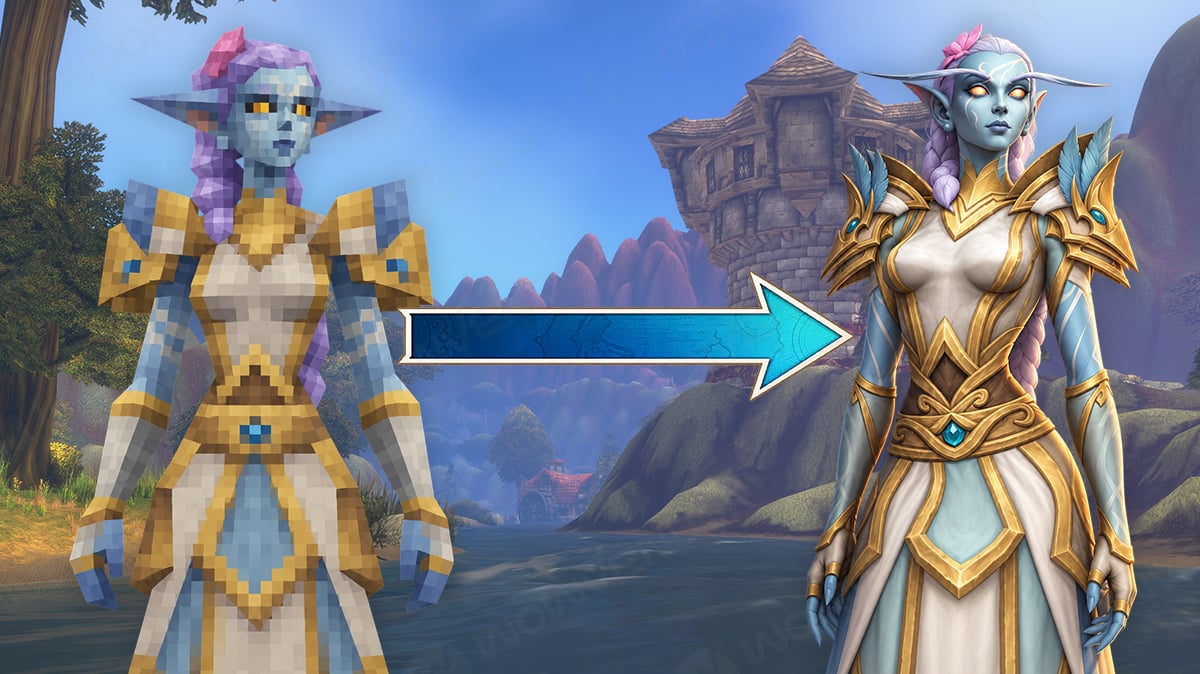
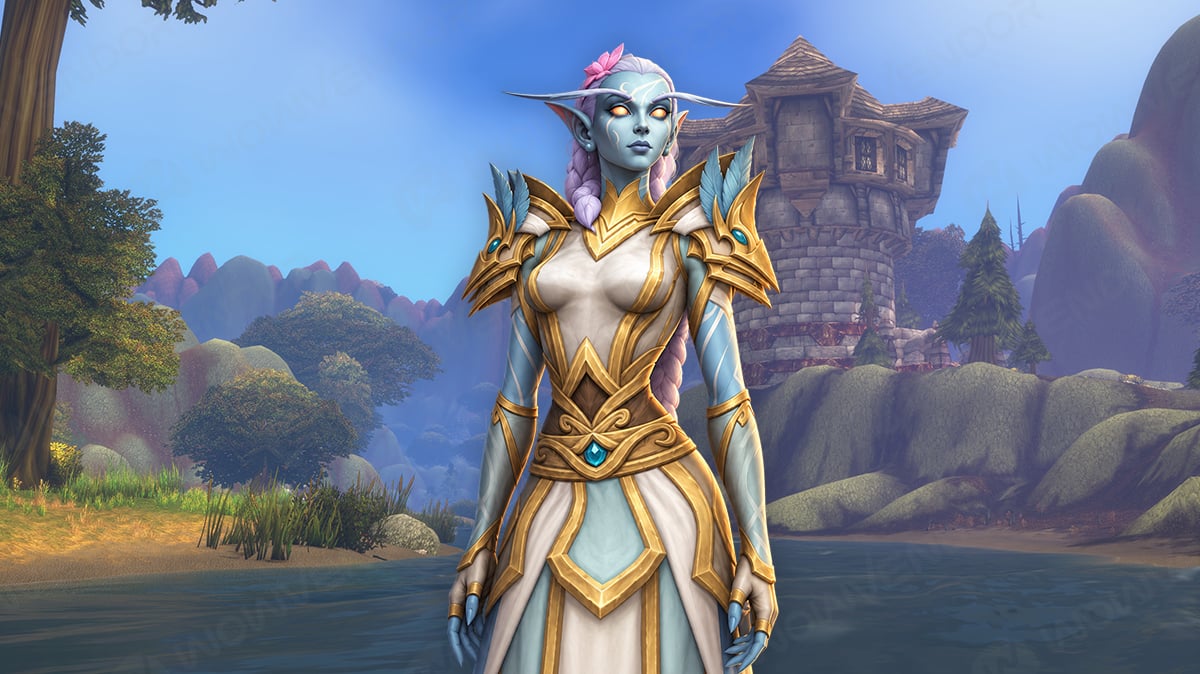
- Forever gives you visual choice: Blizzard supports Classic and Modern visual presets alongside separate HD and SD character models.
Table of Contents
Finding the best WoW Forever graphics settings is more important than you might expect. Forever significantly upgrades Classic Azeroth with new lighting, fog, water, shadows, and environmental effects, making it noticeably more demanding than traditional WoW Classic.
In this guide, we’ve put together our recommended WoW Forever optimal settings for a balance between performance and visual quality, alongside separate options for lower-end hardware.
Related posts



Note
WoW Forever is still in Beta. Performance, bugs, and individual graphics options can change before the November 4, 2026 launch. Treat the recommendations below as a starting point rather than permanent settings.
If you need help beyond the standard WoW Forever settings, you can always count on WoW Forever boosting.
Best WoW Forever graphics settings
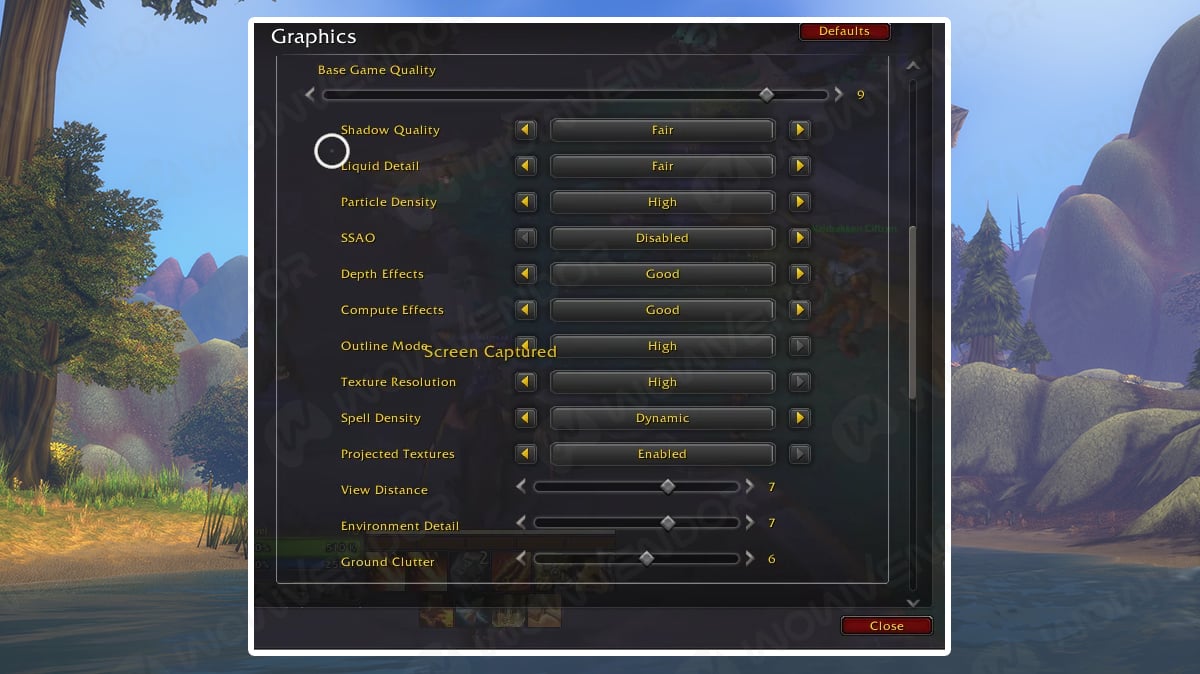
For most players, we recommend starting with the following WoW Forever graphics settings and adjusting from there depending on your GPU, resolution, and desired FPS.
|
Setting |
Recommended |
|---|---|
|
Display Mode |
Fullscreen (Windowed) |
|
Resolution |
Native |
|
Render Scale |
100% |
|
Vertical Sync |
Off, unless you experience tearing |
|
Foreground FPS Limit |
Match your desired FPS / monitor refresh rate |
|
Target FPS |
Off |
|
Anti-Aliasing |
Image-Based / CMAA 2 |
|
Character Models |
HD |
|
Shadow Quality |
Fair |
|
Secondary Lighting |
Fair or Good |
|
Compute Effects |
Low or Good |
|
Texture Resolution |
High |
|
Particle Density |
Good |
|
Spell Density |
Essential |
|
Projected Textures |
Enabled |
|
SSAO |
Low or Disabled |
|
PBR Liquid Detail |
Good |
|
View Distance |
7 |
|
Environment Detail |
7 |
|
Ground Clutter |
5–7 |
|
Bloom |
Preference |
|
Depth Effects |
Low or Good |
|
Ray Traced Shadows |
Disabled |
This setup aims to preserve most of Forever’s new atmosphere while cutting down some of the most expensive effects. If your FPS is already comfortably above your target, increase Secondary Lighting, Compute Effects, SSAO, View Distance, and shadows one by one.
Best WoW Forever settings for FPS
If you’re primarily interested in performance, you don’t need to immediately set the entire game to minimum. Beta players testing different hardware have repeatedly found that a smaller group of settings causes most of the performance loss:
- Secondary Lighting
- Shadow Quality
- Compute Effects
- Render Scale
Player testing has shown substantial GPU-load reductions after lowering these settings, while changing View Distance, Environment Detail, and Ground Clutter can produce much smaller gains on some systems. These are community Beta observations rather than official Blizzard benchmarks, so results will vary between hardware and future builds.
For maximum FPS, try:
|
Setting |
FPS-focused value |
|---|---|
|
Render Scale |
75–90% |
|
Shadow Quality |
Low |
|
Secondary Lighting |
Fair |
|
Compute Effects |
Low |
|
SSAO |
Disabled |
|
Particle Density |
Low |
|
Spell Density |
Essential |
|
Character Models |
SD |
|
PBR Liquid Detail |
Low |
|
View Distance |
5 |
|
Environment Detail |
5 |
|
Ground Clutter |
3–5 |
|
Anti-Aliasing |
None or lightweight Image-Based |
|
Projected Textures |
Enabled |
Do not disable Projected Textures just for extra FPS. Important encounter mechanics can rely on projected ground effects, making this setting worth keeping enabled even on weaker PCs.
Lower render scale first
If the game is still GPU-limited after reducing lighting and shadows, lower Render Scale.
Start at around 90%, then try 80% or 75%. This usually produces a larger FPS improvement than reducing texture quality because the GPU has fewer pixels to render every frame. Avoid going extremely low unless necessary, as Forever’s updated environment can quickly become blurry at aggressive render scales.
WoW Forever graphics settings explained
The biggest difference between Forever and ordinary Classic is its updated renderer. Blizzard highlights effects such as flowing rivers in Elwynn Forest, mist over Darkshore, moonlight through Ashenvale, improved environmental lighting, and other atmospheric rendering upgrades.
These improvements also explain why Forever can require considerably more GPU power than Classic Era.
Secondary Lighting
Secondary Lighting is currently one of the most demanding WoW Forever graphics settings. This setting helps produce Forever’s improved environmental lighting and contributes significantly to how the rebuilt Azeroth looks.
During early Beta builds, Secondary Lighting also caused stability problems on some Macs. Blizzard has already shipped fixes addressing several Mac display and stability issues, including problems surrounding higher lighting settings.
Our recommendation:
- Low-end PC: Fair
- Mid-range PC: Fair or Good
- High-end PC: High
- Mac: Start at Fair or Good and increase after confirming stability
If Forever runs poorly, this should be one of the first settings you lower.
Shadow Quality
Shadow Quality is another expensive option. The new lighting system makes shadows much more noticeable than in traditional Classic, but Beta users have reported both significant performance differences and occasional rendering issues at higher settings.
For most players, Fair offers a reasonable balance. Use Low if you are struggling with FPS or experiencing graphical bugs.
Compute Effects
Compute Effects contributes to several modern environmental effects used by the Forever renderer. Current Beta testing suggests it can be one of the major GPU-intensive settings alongside Secondary Lighting and shadows.
We recommend Low or Good for balanced settings and increasing it only when you have GPU performance to spare.
Texture Resolution
Unlike lighting or shadows, Texture Resolution should usually stay High unless your GPU is running out of VRAM. Lowering textures generally hurts image quality considerably without providing the same FPS improvement as reducing lighting or render resolution.
Try lowering this setting only if you experience:
- Texture loading problems
- Severe VRAM limitations
- Stuttering when moving between areas
- Very old or integrated graphics
Spell Density
For group content, use Essential as the baseline. This reduces unnecessary player spell effects while keeping important encounter information visible. It is particularly useful when entering crowded areas, dungeons, or eventually Forever’s 20-player raids.
View Distance
View Distance controls how far world objects remain visible. Forever’s large open zones look excellent at maximum distance, but you usually don’t need to run this at 10. For our WoW Forever optimal settings, around 7 provides a strong balance between visuals and performance. Lower it toward 5 on slower hardware.
Ground Clutter and Environment Detail
These settings control the density and complexity of environmental objects around the world. We recommend:
- High-end: 8–10
- Balanced: 5–7
- Low-end: 3–5
Interestingly, some Beta testing suggests these settings currently have less performance impact than lighting and shadows on powerful hardware. That may change as Blizzard continues optimization.
HD vs SD character models
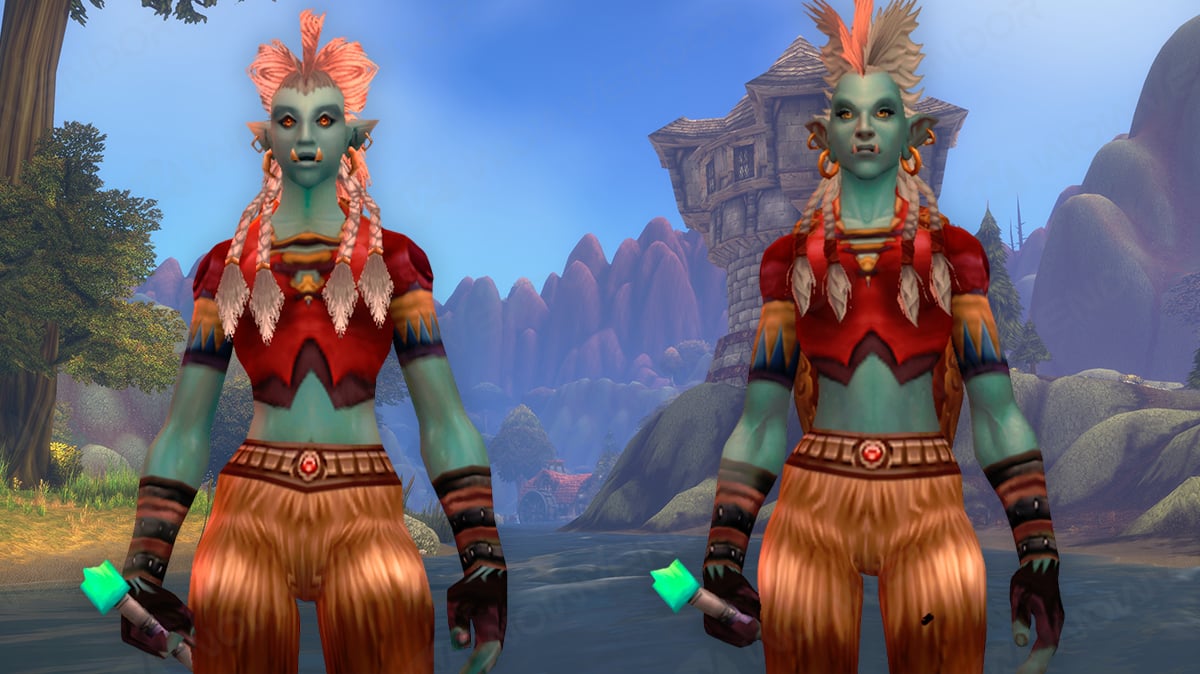
Character models are another separate choice. Players can use:
- HD character models
- SD character models
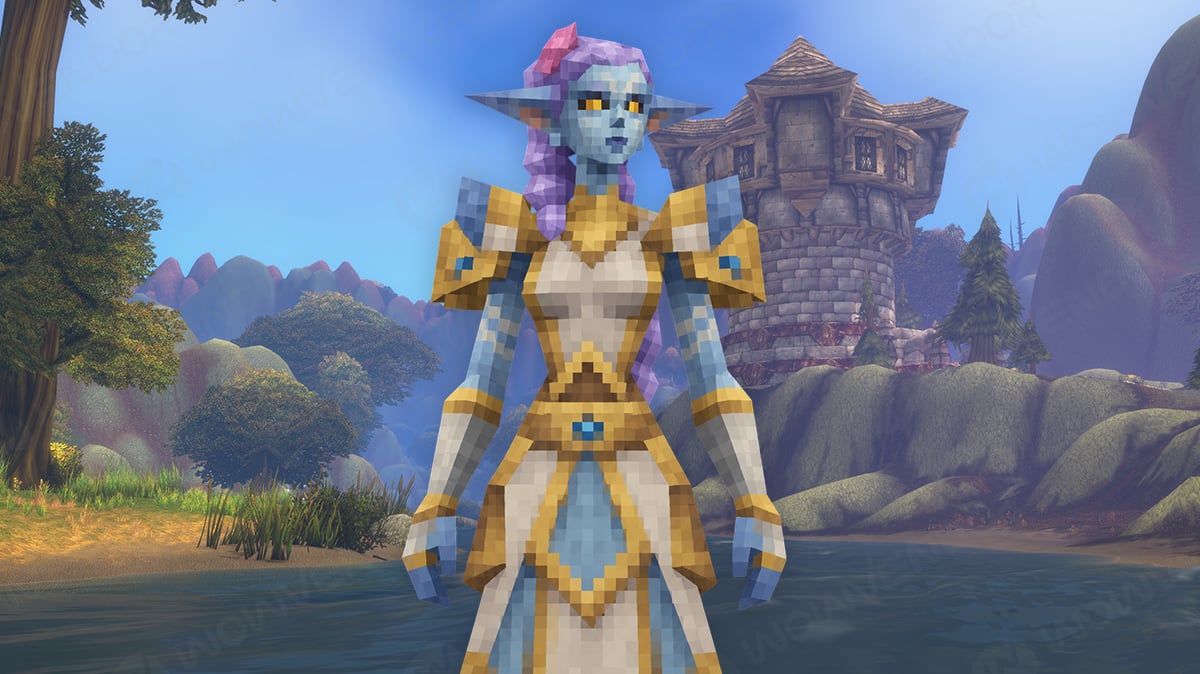
Blizzard is even restoring Classic-style animations for HD models, allowing players to use higher-detail characters without completely adopting the modern Retail animation style. For most PCs, we recommend HD.
Switch to SD if:
- You strongly prefer Classic visuals
- You use older hardware
- You want to reduce GPU load wherever possible
- You simply prefer the original character models
Note that choosing SD models does not mean disabling Forever’s new world lighting and rendering effects. Character-model quality and environmental graphics are separate options.
WoW Forever settings for low-end PCs
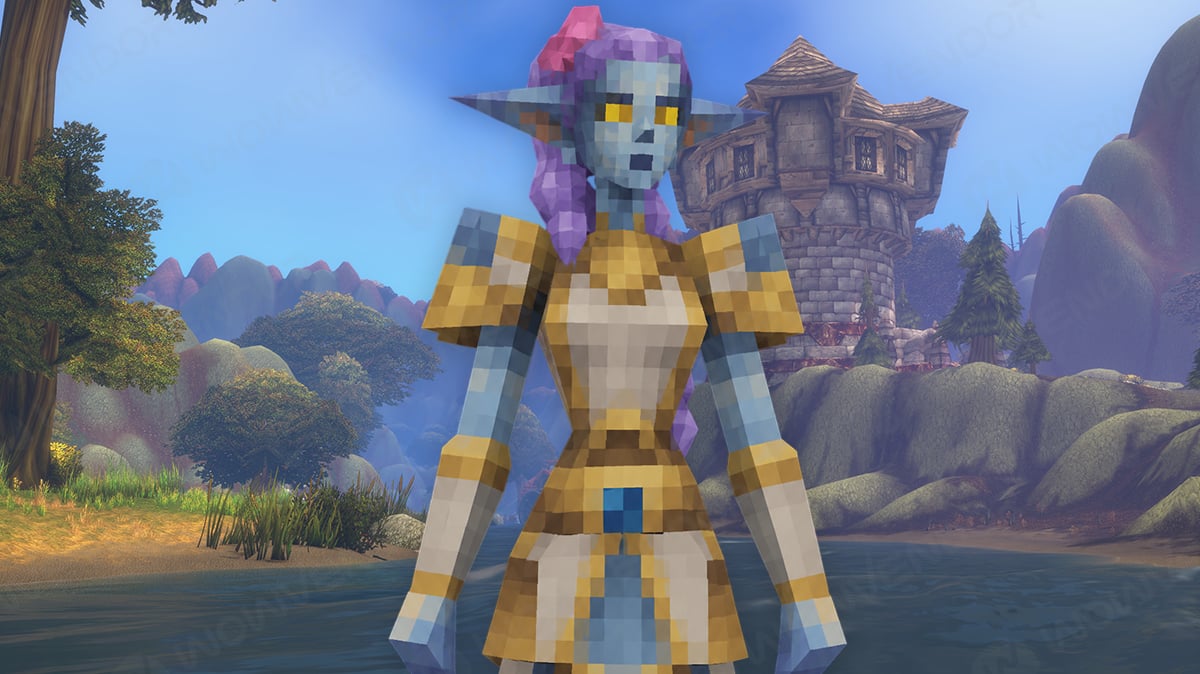
If you are close to the minimum hardware requirements, start conservatively. Try:
- Graphics preset around 3–5
- Render Scale at 75–85%
- SD character models
- Shadows Low
- Secondary Lighting Fair
- Compute Effects Low
- SSAO Disabled
- Particle Density Low
- Spell Density Essential
- View Distance 5
- Environment Detail 5
- Ground Clutter 3
- PBR Liquid Detail Low
Keep Texture Resolution as high as your available VRAM comfortably allows. If you still have unstable FPS, reducing resolution or render scale will usually provide a more noticeable improvement than cutting every world-detail slider to minimum.
WoW Forever GPU requirements
Forever’s upgraded renderer also introduces a new GPU compatibility requirement. Blizzard says supported graphics cards must use at least one of these architectures:
- AMD Graphics Core Next 1 or newer
- NVIDIA Maxwell or newer
- Intel Skylake graphics or newer
Forever relies on RGBA16F UAV support in compute shaders for its updated visual rendering. Blizzard specifically notes that some GPUs can technically meet this architecture requirement while still falling below the game’s actual minimum system specifications.
For example, the GTX 750 Ti uses a supported architecture but is still below Forever’s minimum target.
WoW Forever Mac graphics settings

Mac players should be more cautious during the Beta.
Early builds produced issues involving Secondary Lighting, shadows, black textures, color corruption, and even system instability on some Apple Silicon Macs. Blizzard subsequently released Beta Build 69977 with fixes for Mac display and stability problems, and later testing showed some of the earlier Secondary Lighting crashes were resolved.
For now, a safe starting point is:
- Native resolution
- 100% or 75–90% Render Scale
- Shadow Quality Low
- Secondary Lighting Fair or Good
- Ray Traced Shadows Disabled
- Image-Based anti-aliasing
- Moderate View Distance
- Foreground FPS capped at a stable value
If you experience black vegetation, strange shadows, color changes, or severe stuttering, Shadow Quality is currently one of the first settings worth reducing. Reports from current Beta builds continue to identify shadow rendering as problematic on some Macs.
And that wraps up our best WoW Forever graphics settings!



Comments